> ## Documentation Index
> Fetch the complete documentation index at: https://docs.blogsync.io/llms.txt
> Use this file to discover all available pages before exploring further.
# Getting Started
> Start building awesome documentation in minutes
[BlogSync](https://blogsync.io/) is your all-in-one solution for converting Google Docs and Word documents to published content instantly. **This guide covers how to get started using BlogSync** and its transformative features for turning your content into clean, optimized HTML and publishing directly to WordPress, Webflow, and HubSpot.
### **What You’ll Learn**
* What is BlogSync?
* How to Create an Account
* How to Connect Your CMS (e.g., WordPress, Webflow, Hubspot)
* How to Convert Your First Doc (i.e., Google Doc or Microsoft Docx)
## **What is BlogSync?**
BlogSync transforms your Google Docs and Microsfot Word documents (.docx) into clean, web-ready HTML with these powerful features:
✅ **Smart Document Conversion** – Preserves formatting while optimizing for web.\
✅ **Automatic Image Optimization** – Converts images to WebP format.\
✅ **AI-Powered Enhancement** – Generates descriptive alt text and optimized file names.\
✅ **Direct-Platform Publishing** – Direct integration with WordPress, HubSpot, and Webflow.\
✅ **Team Collaboration** – Share access and manage content with your team.\
✅ **Google Drive Integration** – Import Google Docs directly from Google Drive.
## **How to Create an Account**
1. **Visit BlogSync** – Go to [blogsync.io](https://blogsync.io/)
2. **Select Your Plan or Choose Free Trial** – BlogSync offers a free trial as well as several premium plans.
3. **Enter Your Details** – Provide your name and email address.
4. **Create Password** – Set a secure password for your account.
### **What You Get With BlogSync’s Free Trial**
* **3 document conversions** per month
* **25 optimized images** per month
* **1 platform connection** (WordPress, HubSpot, or Webflow)
## **How to Connect Your CMS**
### **WordPress Connection**
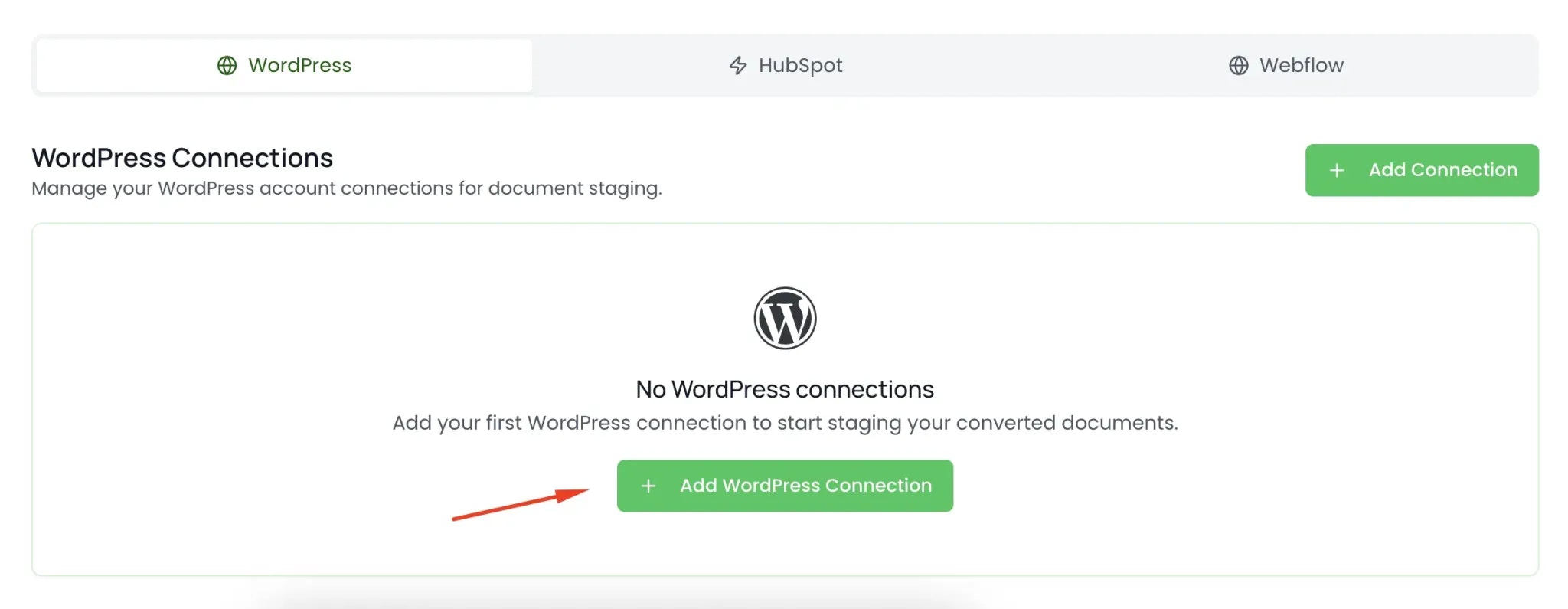 1. **Go to Connections** – Navigate to “Connections” in Settings
2. **Select WordPress** – Click “Add WordPress Connection”
3. **Enter Site Details** – Provide your WordPress site URL
4. **Authenticate** – Enter your WordPress username and application password
5. **Test Connection** – BlogSync will verify the connection
#### **Setting Up Your Application Password**
1. Go to your WordPress admin → Users → Profile
2. Scroll to “Application Passwords”
3. Create new password with the name “BlogSync”
4. Copy the generated password
5. Use this in the BlogSync connection setup
### **HubSpot Connection**
1. **Go to Connections** – Navigate to “Connections” in Settings
2. **Select WordPress** – Click “Add WordPress Connection”
3. **Enter Site Details** – Provide your WordPress site URL
4. **Authenticate** – Enter your WordPress username and application password
5. **Test Connection** – BlogSync will verify the connection
#### **Setting Up Your Application Password**
1. Go to your WordPress admin → Users → Profile
2. Scroll to “Application Passwords”
3. Create new password with the name “BlogSync”
4. Copy the generated password
5. Use this in the BlogSync connection setup
### **HubSpot Connection**
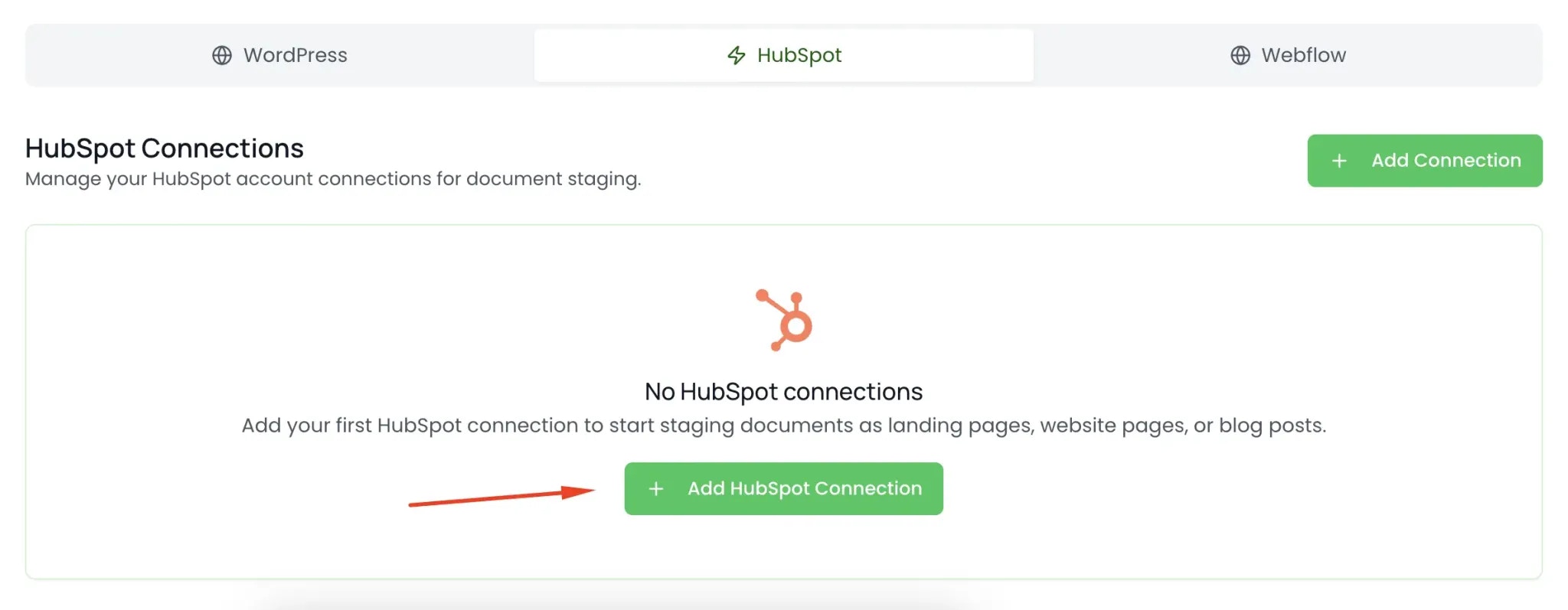 1. **Go to Connections** – Navigate to “Connections” in Settings
2. **Select HubSpot** – Click “Add HubSpot Connection”
3. **Enter Site Details** – Follow the steps in the popup to connect your HubSpot website
4. **Test Connection** – BlogSync will verify the connection
### **Webflow Connection**
1. **Go to Connections** – Navigate to “Connections” in Settings
2. **Select HubSpot** – Click “Add HubSpot Connection”
3. **Enter Site Details** – Follow the steps in the popup to connect your HubSpot website
4. **Test Connection** – BlogSync will verify the connection
### **Webflow Connection**
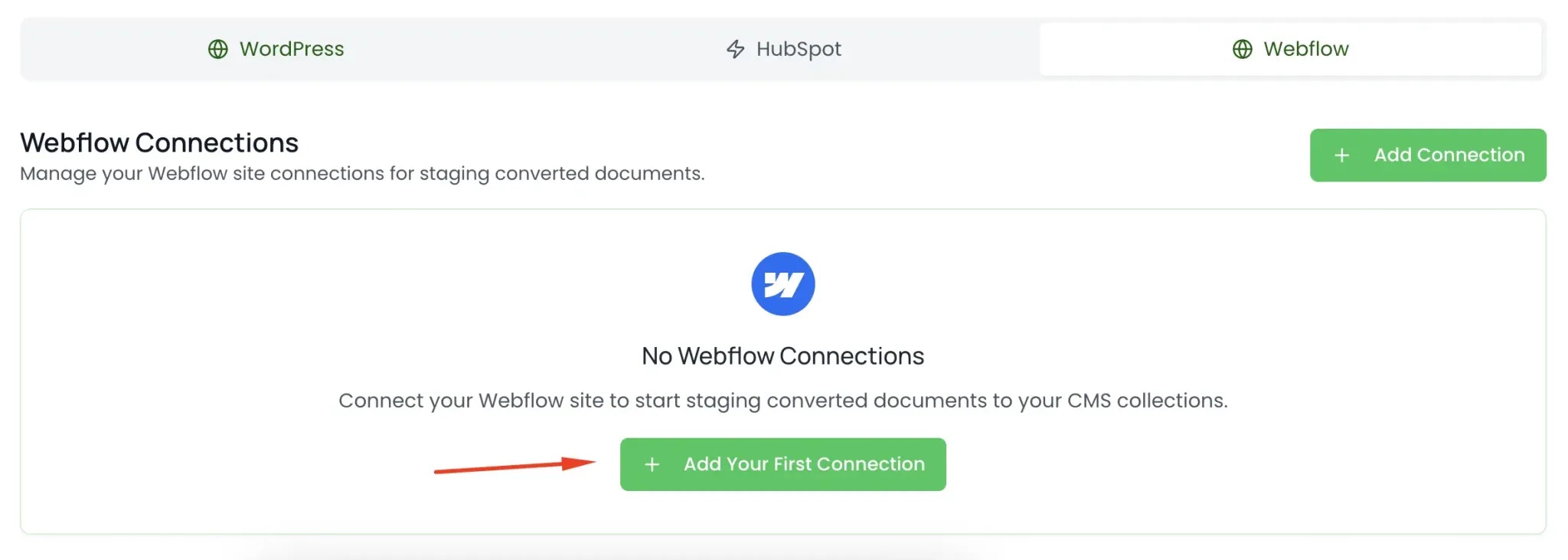 1. **Go to Connections** – Navigate to “Connections” in Settings
2. **Select HubSpot** – Click “Add Webflow Connection”
3. **Enter Site Details** – Follow the steps in the popup to connect your Webflow website
4. **Test Connection** – BlogSync will verify the connection
## **How to Convert Your First Document**
1. **Go to Connections** – Navigate to “Connections” in Settings
2. **Select HubSpot** – Click “Add Webflow Connection”
3. **Enter Site Details** – Follow the steps in the popup to connect your Webflow website
4. **Test Connection** – BlogSync will verify the connection
## **How to Convert Your First Document**
 ### **Upload and Convert**
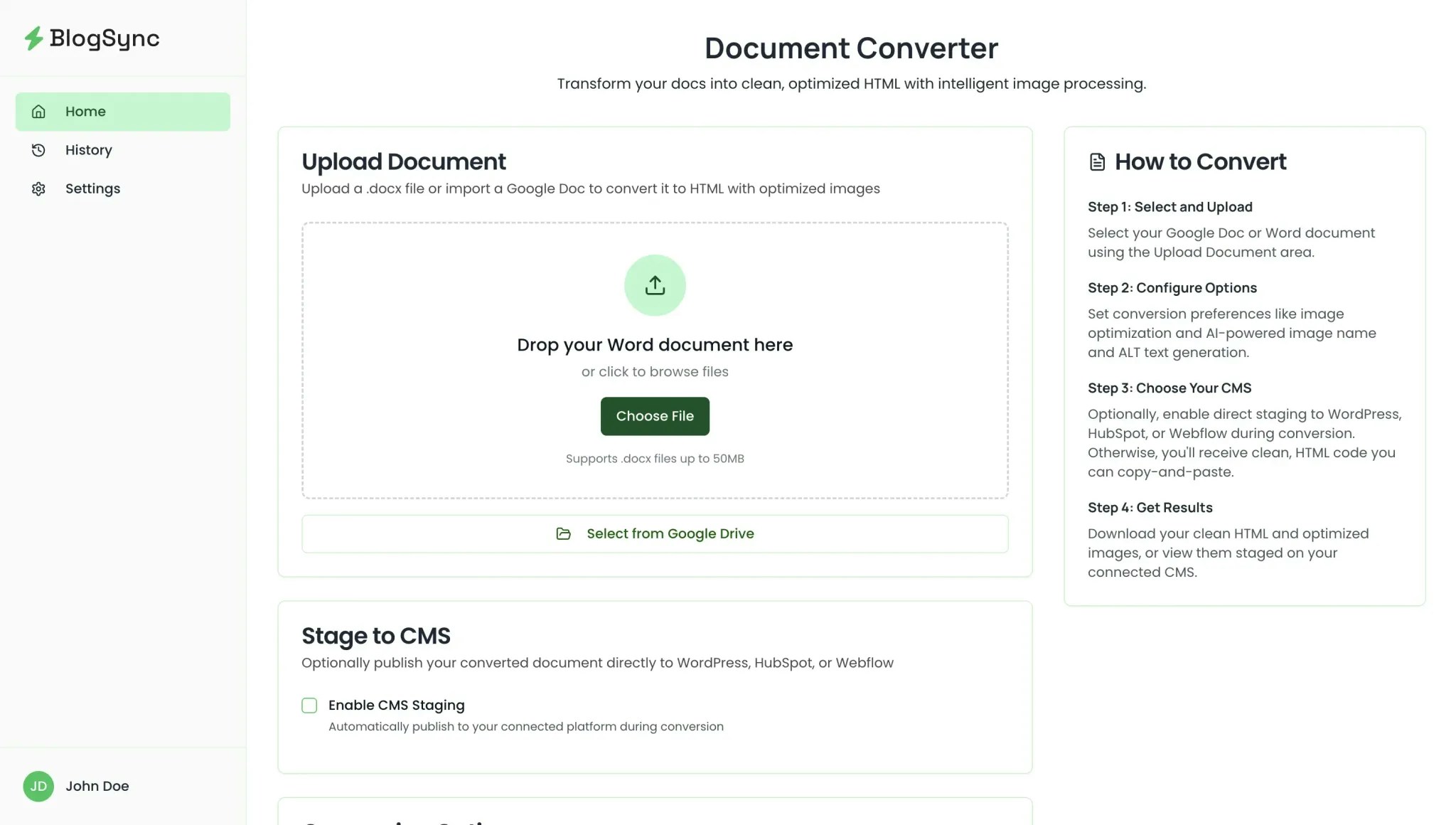
1. **Access Dashboard** – After logging in, you’ll see the main dashboard (i.e., your Home page)
2. **Upload or Select Document** – Click “Choose File” or drag and drop a .docx file. You can also select files directly from your Google Drive.
3. **Optional: Stage to Your CMS** – Check the “Enable CMS Staging” checkbox to add your converted document to your connected website.
4. **Choose Conversion Options** – By default, “Convert images to WebP format” and “Generate AI-powered image names and alt text” will be checked, but you can disable these conversion options if you’d like.
5. **Start Conversion** – Click “Convert Document”
#### **What Happens During Conversion**
* **Document Analysis** – BlogSync reads your Word document structure
* **Image Extraction** – All images are extracted and processed
* **Format Optimization** – Text formatting is converted to clean HTML
* **Image Enhancement** – Images are optimized, and AI generates context-aware image names and alt tags
## **Troubleshooting**
### **Common Issues**
**Document Won’t Upload**
* Check file size (max 50MB)
* Verify file isn’t corrupted
**Images Not Optimizing**
* Supported formats: JPG, PNG, GIF, BMP
* Check image file sizes
**Platform Connection Failing**
* Verify credentials are correct
* Check if site URL is accessible
* Ensure application passwords are active
**Conversion Takes Too Long**
* Large documents may take several minutes
* Images add processing time
* Check your internet connection
## **Getting Help**
* Email: [support@blogsync.io](mailto:support@blogsync.io)
* Response time: Within 24 hours
*
### **Upload and Convert**
1. **Access Dashboard** – After logging in, you’ll see the main dashboard (i.e., your Home page)
2. **Upload or Select Document** – Click “Choose File” or drag and drop a .docx file. You can also select files directly from your Google Drive.
3. **Optional: Stage to Your CMS** – Check the “Enable CMS Staging” checkbox to add your converted document to your connected website.
4. **Choose Conversion Options** – By default, “Convert images to WebP format” and “Generate AI-powered image names and alt text” will be checked, but you can disable these conversion options if you’d like.
5. **Start Conversion** – Click “Convert Document”
#### **What Happens During Conversion**
* **Document Analysis** – BlogSync reads your Word document structure
* **Image Extraction** – All images are extracted and processed
* **Format Optimization** – Text formatting is converted to clean HTML
* **Image Enhancement** – Images are optimized, and AI generates context-aware image names and alt tags
## **Troubleshooting**
### **Common Issues**
**Document Won’t Upload**
* Check file size (max 50MB)
* Verify file isn’t corrupted
**Images Not Optimizing**
* Supported formats: JPG, PNG, GIF, BMP
* Check image file sizes
**Platform Connection Failing**
* Verify credentials are correct
* Check if site URL is accessible
* Ensure application passwords are active
**Conversion Takes Too Long**
* Large documents may take several minutes
* Images add processing time
* Check your internet connection
## **Getting Help**
* Email: [support@blogsync.io](mailto:support@blogsync.io)
* Response time: Within 24 hours
*