

Overview
When using Advanced Mode for Webflow staging, you can include a metadata table at the top of your document to define values for specific CMS fields like title, slug, SEO metadata, and images. This table is automatically detected during conversion, its values are extracted and mapped to your Webflow CMS fields, and the table itself is removed from the final published content.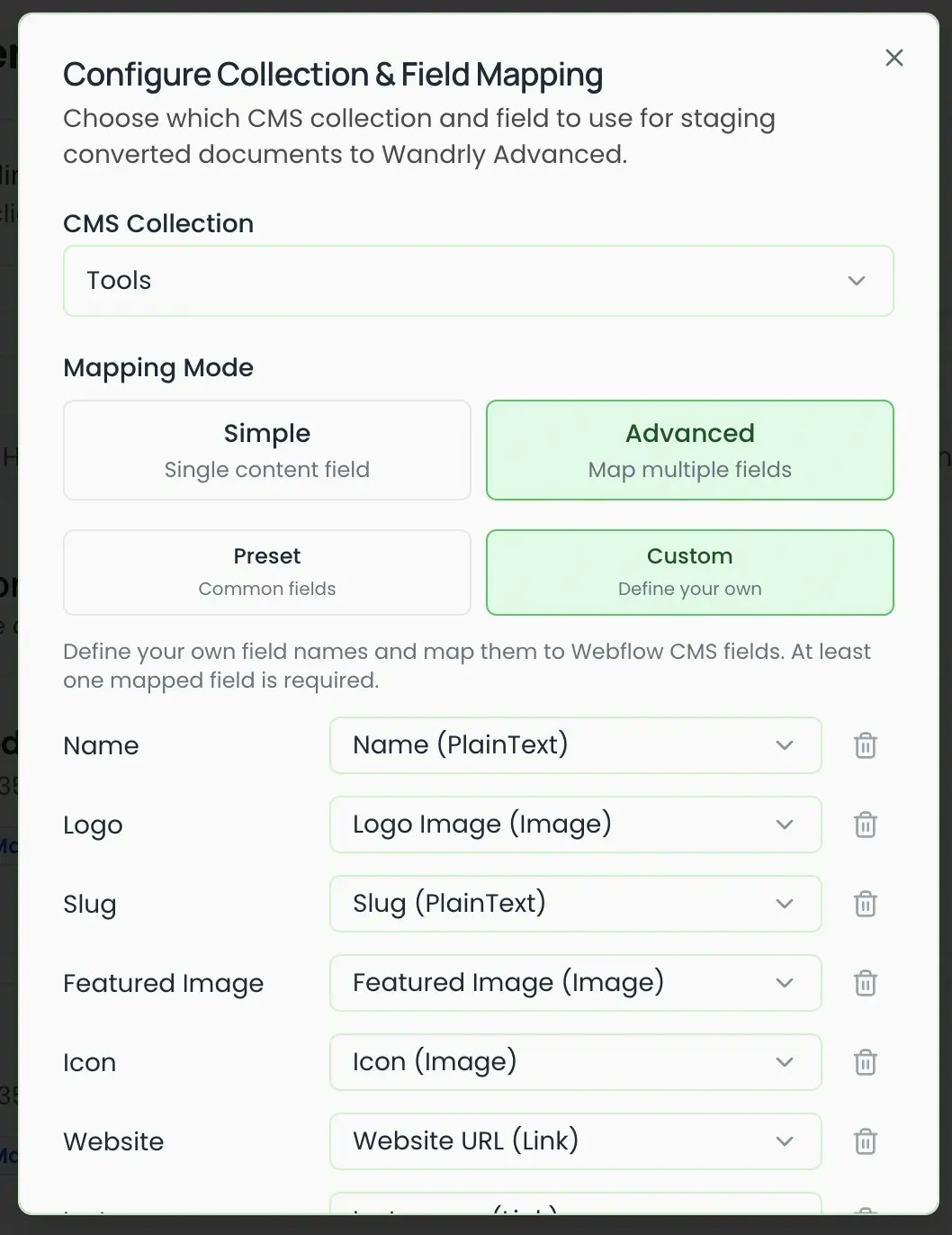
Table Format
The metadata table must follow these rules:- It must be a two-column table placed at the very top of the document (before any headings, paragraphs, or other content).
- The left column contains the field name.
- The right column contains the value for that field.
- Every row must have exactly two cells.
- The table must contain at least one recognized field (see supported fields below) anywhere in the table, OR have at least two rows. This is how BlogSync distinguishes a metadata table from regular table content.
Example
Supported Fields
Field names are case-insensitive. Spaces and hyphens are interchangeable (e.g., “Meta Description”, “meta-description”, and “metadescription” all work).Image Fields
For image fields (Main Image, Thumbnail Image, etc.), insert the actual image directly into the right-hand cell of the table in your document. Do not type a file path or URL. During conversion:- The image is extracted from the document.
- It is optimized and converted to WebP format.
- It is uploaded to Webflow as an asset.
- The resulting Webflow CDN URL is used as the field value.
How It Works
- Upload your document with the metadata table at the top.
- BlogSync converts the document to HTML and detects the metadata table.
- Field names and values are extracted from the table rows.
- The table is removed from the body HTML.
- Images in the document (including metadata table images) are optimized and uploaded to Webflow.
- When staging in Advanced Mode, each mapped Webflow CMS field is populated with the corresponding metadata value.
- Any fields not specified in the table fall back to auto-generated values.
Important Notes
Table Must Be Near the Top
The metadata table must be at the top of your document. Small Word artifacts like bookmarks or tab markers before the table are automatically skipped, but any substantial text or headings before the table will prevent it from being recognized as metadata.Only Include Fields You Need
You do not need to include every field. Any field you omit will use its auto-generated value:- Title defaults to the document filename.
- Slug is generated from the title.
- Excerpt is pulled from the first paragraph of the content.
Table Is Stripped from Output
The metadata table is automatically removed from the body content before it is staged to Webflow. It will not appear in your published article.Advanced Mode Only
The metadata table is only used when your Webflow connection is set to Advanced Mode with field mappings configured. In Simple Mode, the table is treated as regular content.Date Format
Use a standard date format such asYYYY-MM-DD (e.g., 2026-02-20) for best compatibility with Webflow date fields.
Custom Fields
In addition to the built-in fields listed above, you can map any custom field from your metadata table to a Webflow CMS field.How to Use Custom Fields
- In your document’s metadata table, add a row with your custom field name in the left column and its value in the right column.
- In BlogSync’s Webflow connection settings (Advanced Mode), click **Custom **top open to the Custom Fields section.
- Type the same field name you used in your document and click Add.
- Map it to the desired Webflow CMS field using the dropdown.
Example
Your metadata table might look like:
In the Webflow connection settings, you would add custom fields like “CTA Text”, “Author Bio”, “Logo”, and “Pros”, then map each to the corresponding Webflow CMS field. For example, map “Logo” to an Image field, “Pros” to a RichText field, and “CTA Text” to a PlainText field.
Notes on Custom Fields
- The metadata table must contain at least one recognized built-in field (e.g., Title, Slug) OR at least two rows. This is how BlogSync identifies the table as metadata rather than regular content.
- The field name in your document and the custom field name in BlogSync must match (case-insensitive, spaces and hyphens are interchangeable).
- Custom fields support all Webflow field types: PlainText, RichText, Link, Number, and Image.
- For Image fields, insert the image directly into the right-hand cell of your metadata table. The image will be optimized, uploaded to Webflow, and the CDN URL will be used as the field value.
- For RichText fields, you can use formatted content in the value cell, including bullet lists, numbered lists, bold, italic, and links. The formatting is preserved when sent to Webflow.
- If a custom field is mapped but the metadata table does not contain that field, the Webflow CMS field is left empty.
- Custom field mappings are saved with your connection settings and persist across uploads